

Users: Who to Notify
The Users step defines who receives the notification.
How Entrig identifies recipients
When your app calls Entrig.register(userId: ...), it stores a mapping between that user ID and the device token. When a notification fires, Entrig uses that same user ID to look up which devices to send to.
This means the user ID you registered with in the app must exist somewhere in your database, reachable from the trigger table. The Users step is where you tell Entrig how to find it.
1. Select the users table
Pick the table that contains the user IDs your app registers with. This is typically your users table or Supabase’s auth.users.
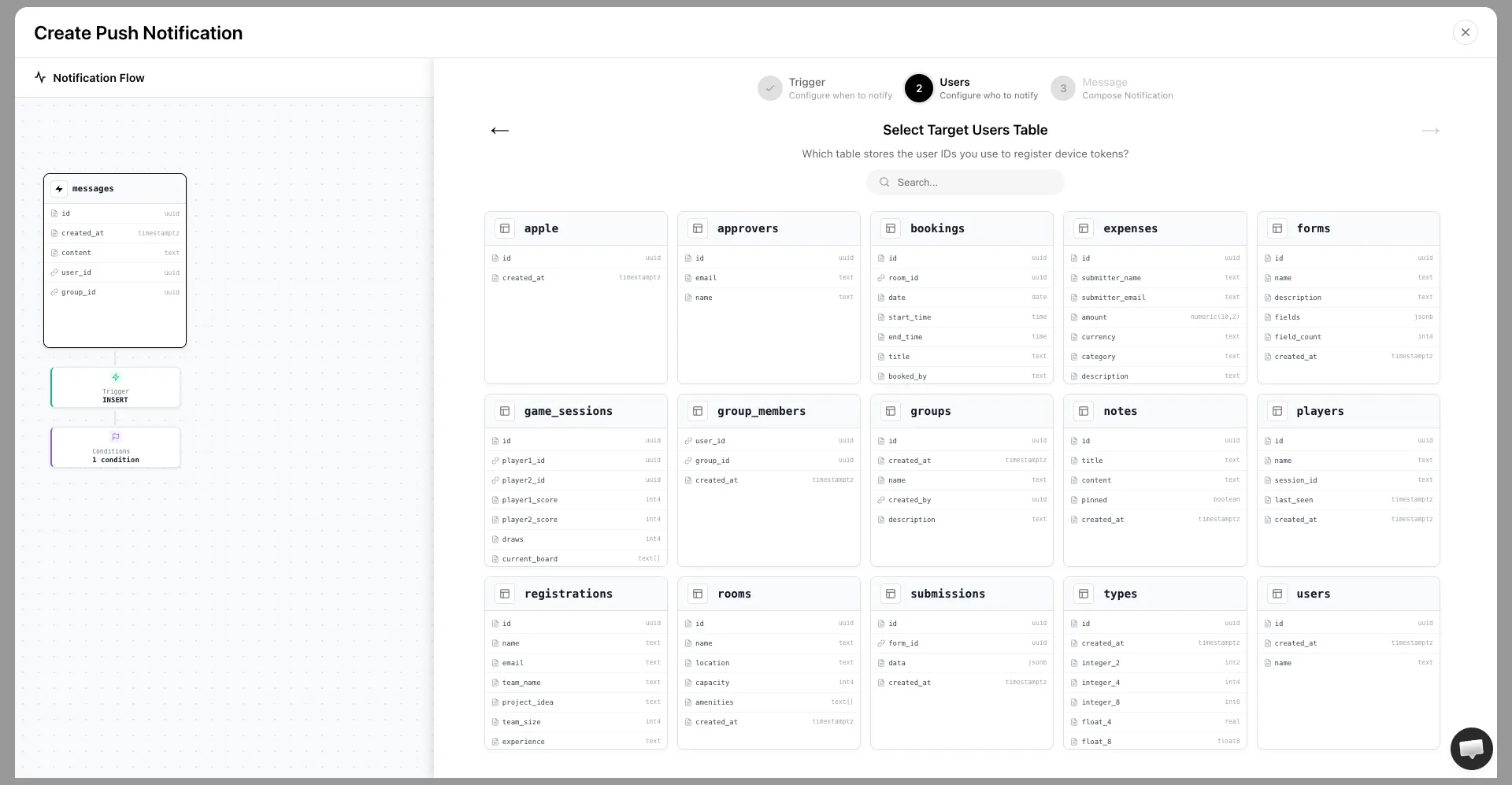
The id column of this table must hold the same value you pass to Entrig.register(userId: ...). If they do not match, Entrig cannot resolve the recipient and the notification will not be delivered.
2. Connect event to users
This step tells Entrig how to trace a path from the trigger event to the users table. Entrig scans your foreign key relationships and shows you the available paths, grouped into three connection types.
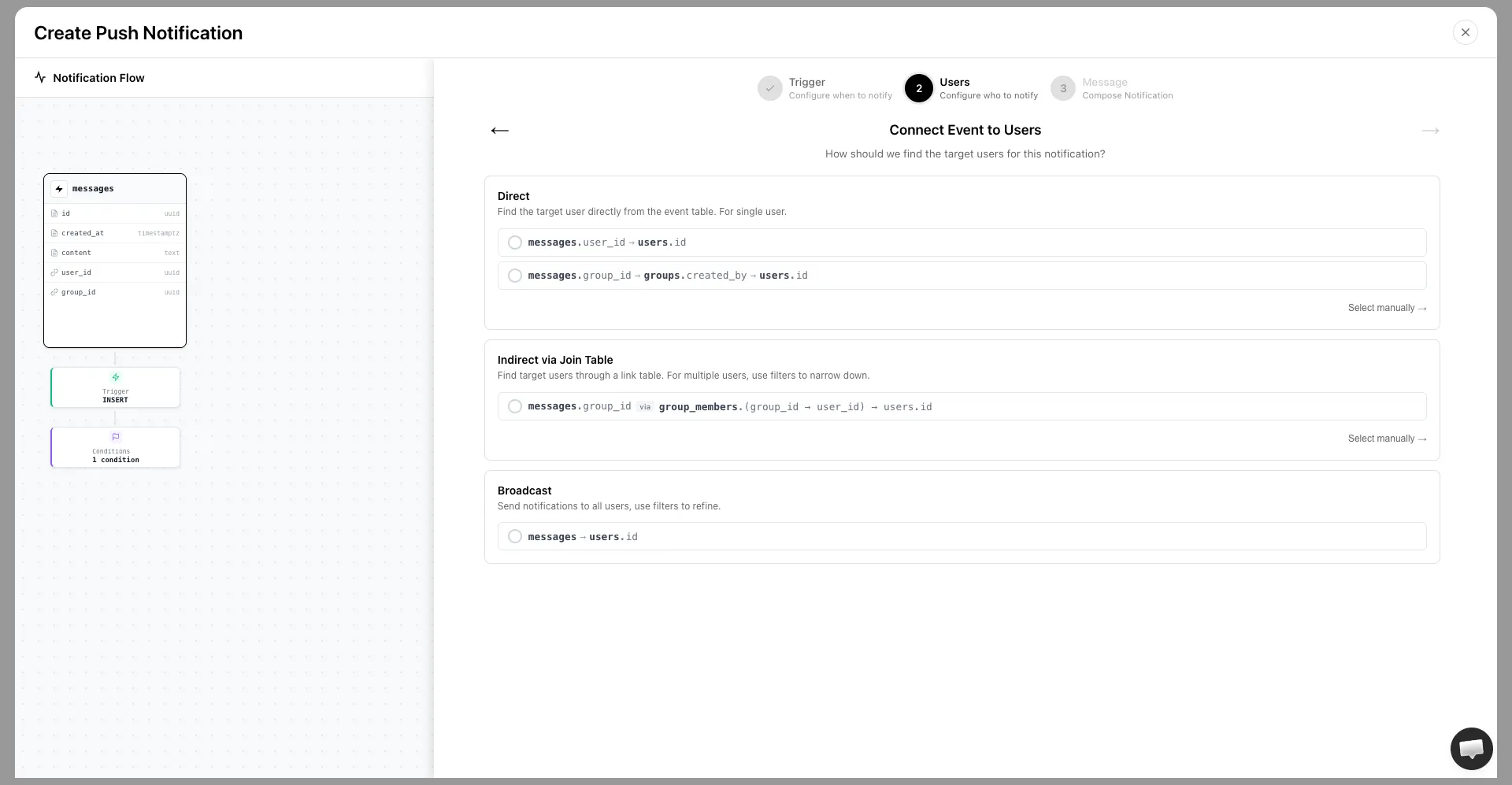
Direct
The trigger table has a field that points to a single user, either directly or through a chain of foreign keys ending at the users table.
Use this when one database event should notify exactly one user.
Example: messages.user_id -> users.id
Indirect via Join Table
The trigger table links to a join (relationship) table, which in turn links to multiple users.
Use this when one database event should notify multiple users.
Example: messages.group_id via group_members.(group_id -> user_id) -> users.id
Broadcast
Notifies all users in the users table when the event fires.
Use this for announcements or system-wide alerts.
Example: messages -> users.id
Entrig lists auto-detected paths under each type. Select the path that matches your data model. If the right path is not listed, use Select manually to configure it yourself.
3. Set recipient filters (optional)
Recipient filters answer the question: among the matched users, who should actually receive this notification?
This option is available for Indirect and Broadcast connections only, because Direct always resolves to a single known user.
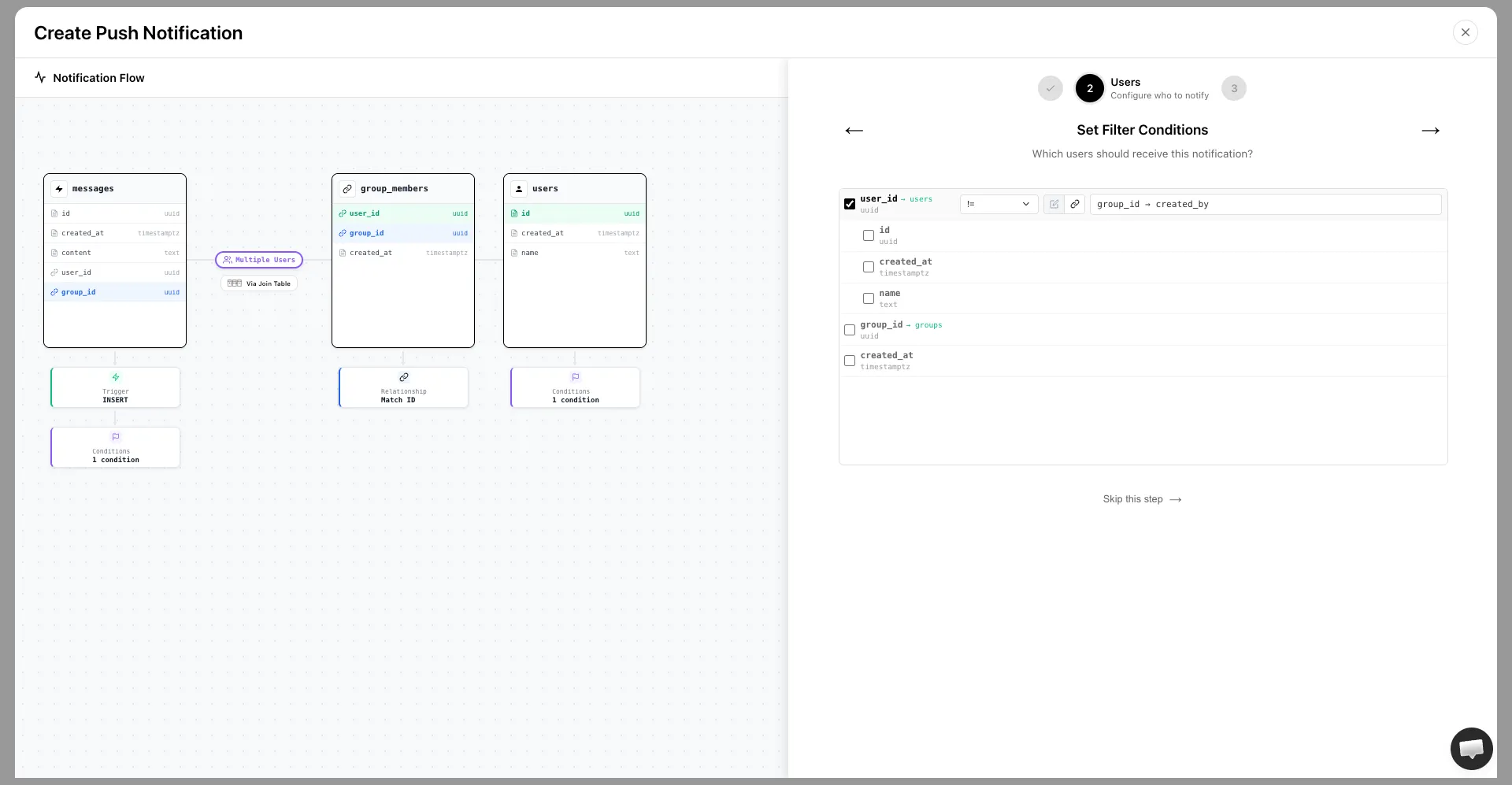
Add one or more filters on the join table (Indirect) or users table (Broadcast). Only users whose records match all filter conditions will receive the notification.
For example, in a group_members join table, set role equals admin to only notify admins in the group.
Recipient filters control who among the matched users receives the notification. To control whether the event should fire at all, use trigger conditions.
Once done, click Continue to move to the Message step.